
Last Updated on 24 September, 2026
Clean videos matter when busy backgrounds distract viewers from the main subject. Editors now want faster tools with simple controls and smoother results. A good video background remover saves effort and keeps results looking neat. Many creators also try AI Background Remover options for quick cleanup.
Even so, the best apps must stay easy for beginners today, too. They should cut clean edges, handle motion well, and reduce manual work. This guide reviews strong choices that balance speed, quality, and everyday editing. So, you can pick one that better fits your videos and workflow.
Part 1. Benefits of Video BG Remover Apps for Creators
Creators now use smart tools to erase video backgrounds with less effort. The following benefits show why these apps fit faster, cleaner creator workflows:
- Time Savings: These apps remove manual masking, so creators finish edits much faster daily. That speed leaves more room for planning shots, captions, and publishing smoothly.
- Clean Edges: Better edge detection keeps hair, hands, and motion looking natural onscreen always. Cleaner cutouts help videos look polished across tutorials, reels, ads, and presentations.
- Scene Freedom: You can replace messy rooms with branded spaces or simpler visual settings. That flexibility supports product demos, lessons, interviews, and short social videos better.
- Easy Retakes: Background changes fix weak shots without forcing creators to reshoot everything again. This makes rough footage more usable when lighting, framing, or location fails.
- Brand Consistency: Creators can keep colors, layouts, and backdrops aligned across multiple videos easily. Consistent visuals strengthen recognition and make channels feel more professional today.
Part 2. 5 Best Video Background Remover Apps You Should Try
Finding the right video background remover depends on your editing style and goals. The apps below stand out for cleaner cutouts, faster workflows, and better creative control.
App 1: Filmora App (Android/iOS)
Creators need editing tools that feel quick, friendly, and flexible today. Wondershare Filmora gives beginners and regular creators a smoother video workflow. Its layout stays simple while offering enough control for polished results. The background eraser for video helps clean scenes without complex editing. That makes edits feel less stressful and easier to finish well.
Beyond cleanup, Filmora supports trims, titles, effects, and audio polishing. It works well for short videos, tutorials, reels, and branded content. Creators can shape cleaner stories without getting stuck in technical steps. Its smart tools help ideas move faster from rough cut onward.
Furthermore, creators can leverage Filmora.TV, an online video creation studio. It allows users to easily sync projects across devices, preview high-definition edits on large TV displays to inspect edge precision, and discover creative templates or community showcases directly from the big screen.
Pros
- AI Portrait removes backgrounds without green screens or chroma key.
- Smart Cutout adds dynamic tracking with edge stabilization.
- Chroma Key includes tolerance, feather, and thickness controls.
Cons
- Free exports add a watermark to the videos.
App 2: CapCut (Android/iOS)
Quick social edits feel smoother when background cleanup happens almost instantly. Many creators choose this app for speed, templates, and flexible exports. Its video background remover helps isolate subjects without complicated manual masking. That approach suits reels, product clips, explainers, and fast branded posts. Overall, it fits creators who value convenience more than detailed controls.
Pros
- Text-to-image backdrops expand scene options beyond basic background swaps.
- Built-in media libraries add stickers, text, and effects inside projects.
Cons
- Pro unlocks advanced AI tools, more assets, and larger storage limits.
- Watermark removal appears as a Pro benefit on CapCut pages officially.
App 3: VN Editor (Android/iOS)
Clean timeline editing matters when creators want fewer distractions during assembly. This app stands out for its simple controls and surprisingly polished exports. For video background remover free needs, this app feels surprisingly usable. Officially, its strongest pitch centers on templates, keyframes, and the absence of watermarks. So, it works best for editors prioritizing general flexibility over specialization.
Pros
- Advanced keyframes help refine motion timing with greater visual precision.
- More than 150 free templates help creators explore styles faster.
Cons
- Official pages do not clearly highlight dedicated background-replacement tools.
- The background documentation appears thinner than its broader online editing guidance.
App 4: Kinemaster (Android/iOS)
Layered compositing feels more practical when precise controls stay accessible daily. Here, creators can erase video background areas with minimal friction quickly. The app also supports composition work with Chroma Key tools today. That makes it useful for tutorials, effects, and layered storytelling projects. As a result, careful creators may find it more capable overall.
Pros
- Chroma Key offers alpha masks, previews, and fine-tuning adjustments easily.
- Premium includes project sharing, private backup, and KineCloud storage space.
Cons
- Free use keeps ads and watermarking unless you upgrade to Premium.
- Unlimited premium assets require a subscription instead of base access today.
App 5: PowerDirector (Android/iOS)
More ambitious edits feel easier when AI handles harder cleanup tasks. This app is built for creators who want broader editing depth. It’s replace video background tools support polished scene changes quickly today. Beyond that, the workflow suits ads, tutorials, and branded content well. Therefore, it appeals to users by balancing automation with stronger finishing options.
Pros
- Motion and face tracking help effects stay cleanly aligned after edits.
- Premium plans add stock libraries and monthly AI credits for creators.
Cons
- Watermark removal and advanced AI features are available with subscription access.
- Mobile purchases stay separate from some desktop PowerDirector licenses for users.
Part 3. Replace Video Background Tools: Which One Is Best? Comparison
If you want to replace the video background without testing every editor yourself, this comparison makes the decision easier. The table below shows which app fits speed, control, value, and cleanup needs better:
| App | Best For | Main strength | Main limitation |
| Filmora | Balanced editing | Easy background removal, replacement, and blurring tools | Some AI tools need paid access |
| CapCut | Fast social videos | Quick cutouts and easy exports | More advanced tools need Pro |
| VN Editor | Free editing value | No watermark and strong basic editing tools | Background tools are less clearly defined |
| KineMaster | Layered editing | Good control for compositing and effects | Free version adds ads and watermarks |
| PowerDirector | AI-heavy editing | Strong AI tools and extra creative features | More premium tools need a subscription |
Simple Steps to Use the Video BG Remover Filmora App Easily
Before you start editing, the steps below show how Filmora simplifies replacing the video background. The following steps keep the process clear from import to export:
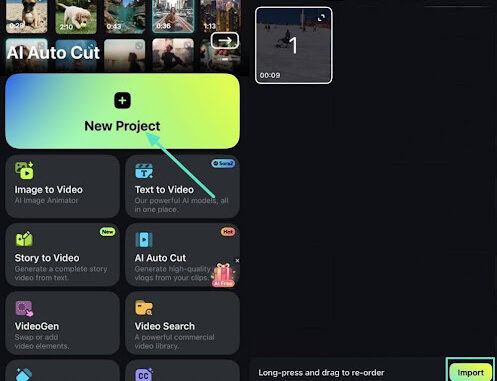
Step 1: Launch Your Editing Workspace
First, open the Filmora app and tap “New Project” on the home screen. Then, import the clip you want to edit and place it on the timeline.
Step 2: Reach the Smart Cutout Tool
Next, tap the video clip so the editing toolbar appears clearly below. After that, swipe through the options and press “Smart Cutout” to move ahead.
Step 3: Let Background Removal Begin
Now, inside the Smart Cutout panel, tap “Remove Background” to continue. As a result, Filmora automatically detects the subject and removes the background. Then, choose a new background from your media if needed.
Step 4: Save the Final Background Edit
Finally, tap “Export” once the edited video looks clean and ready to render it to your device with ease.
Conclusion
In conclusion, cleaner edits matter when backgrounds affect focus, quality, and overall viewer experience. These apps give creators more ways to cut distractions and improve scenes faster. A reliable video background remover can save effort while keeping results polished across different projects. For simple controls, useful features, and smoother editing from start to finish, Filmora App is a reliable choice for creators overall.

Leave a Reply