
Last Updated on 16 July, 2026
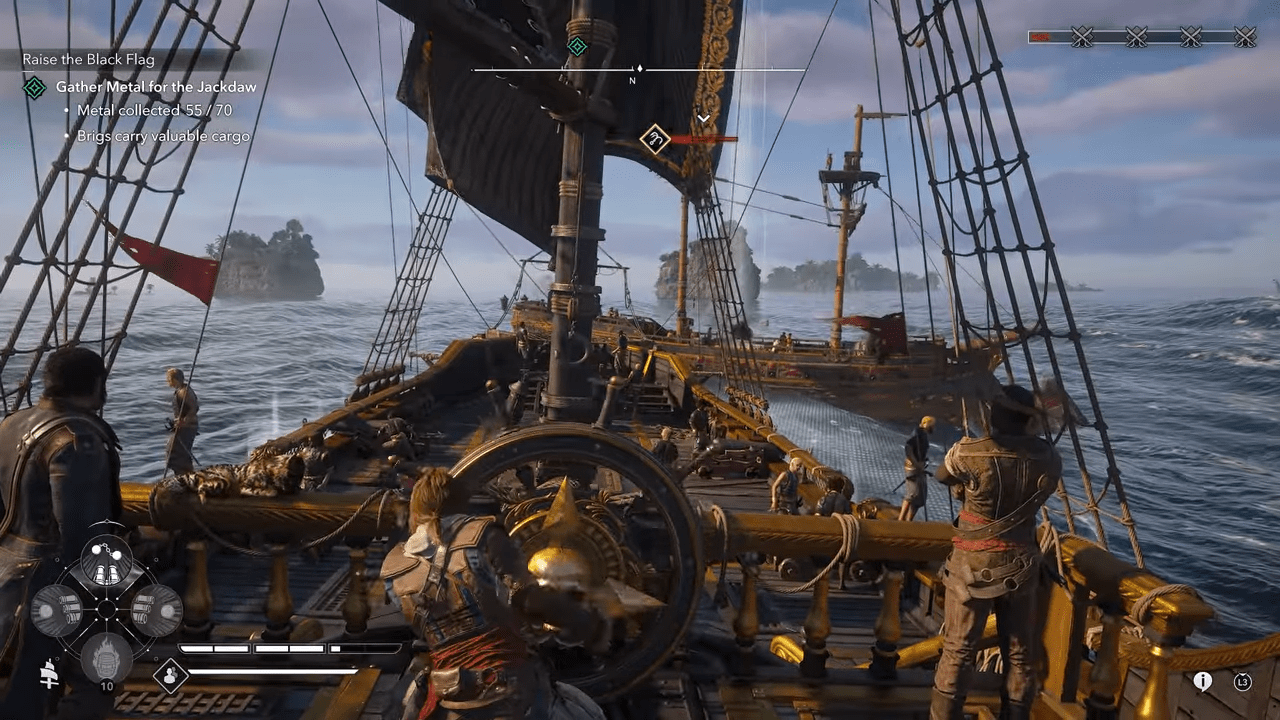
So, Ubisoft recently unleashed Assassin’s Creed Black Flag Resynced to roaring praise, using the powerful Anvil engine to resurrect the Caribbean’s Golden Age of Piracy with breathtaking ray tracing and reworked combat. Yet, even the finest galleons suffer from leaks, and this beautiful remake launched with several technical snags like locked cinematic frame rates, audio sync issues, and abrupt desktop crashes. This definitive troubleshooting guide offers proven community workarounds and official developer fixes to completely solve every major technical hurdle currently plaguing the high seas. By following these tailored optimization steps, you will permanently banish those annoying performance stutters and get back to plundering enemy ships in flawless high definition.
Table of Contents
- 1. The Pre-Voyage Quick Fix Checklist
- 2. Resolving the Restrictive Cinematic Frame Limit
- 3. Addressing Voice and Animation Synchronization Flaws
- 4. Overcoming the Missing Stealth Prompt
- 5. Transforming the Experience with ACBlackFlagFix
- 6. Expanding Your Horizon with Custom Camera Options
- 7. Neutralizing the Strong Artistic Color Tint
- 8. Conquering Desktop Crashes and Launch Failures
- 9. Smoothing Out Performance and Graphical Stutters
- 10. Navigating Authentication and DRM Outages
- 11. Mastering Linux Compatibility and Proton Workarounds
- 12. Bypassing Tedious Startup Logos and Warnings
- 13. Final Verdict
1. The Pre-Voyage Quick Fix Checklist
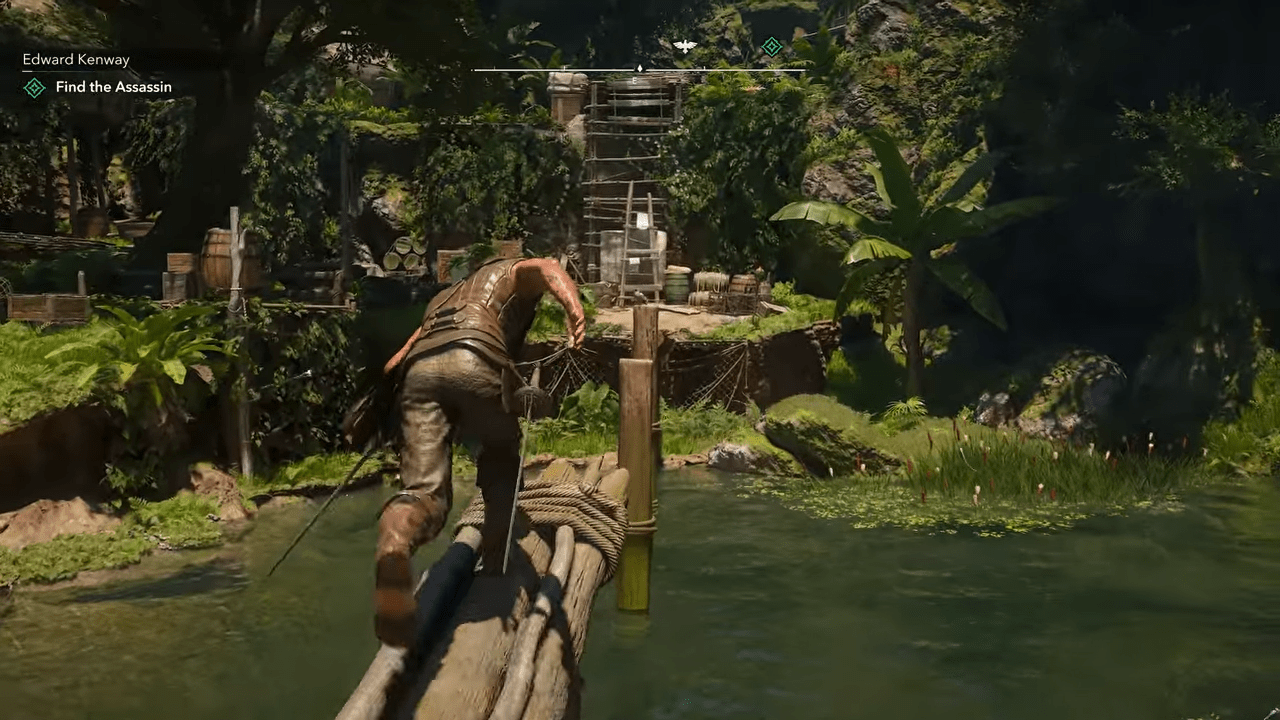
Prior to diving into complex repairs for any singular glitch, you should always run through a foundational troubleshooting routine. Think of this as swabbing the deck before setting sail. Community support threads heavily advise everyone to verify that their computer hardware actually meets the fundamental system requirements before attempting any deeper fixes.
If your machine possesses the necessary power, execute these mandatory preliminary steps:
- Upgrade your graphics hardware drivers. You must visit the official website for your hardware manufacturer to download the absolute newest software packages.
- Validate your installation directory. You can utilize the built-in repair tool located inside your digital storefront launcher to scan for and replace any damaged data.
- Reboot the authentication software. Simply close and restart the Ubisoft Connect application to refresh your account connection.
- Deactivate external interface software. You should turn off any third-party background overlays if your program suddenly closes without warning.
- Reboot the software after visual adjustments. You need to completely restart the application whenever you alter the internal graphical settings to ensure those changes apply correctly.
These foundational actions will not magically cure every single unique glitch. They do, however, serve as the highly recommended starting point for diagnosing computer problems.
⚙️Quick Fix: Always confirm your personal hardware specifications meet the official system requirements before you waste any time attempting complex software repairs.
2. Resolving the Restrictive Cinematic Frame Limit
Nothing ruins the immersion of an exciting pirate narrative quite like a sudden drop in visual fluidity. Many players report a highly specific visual flaw regarding story sequences.
Identifying the Symptoms
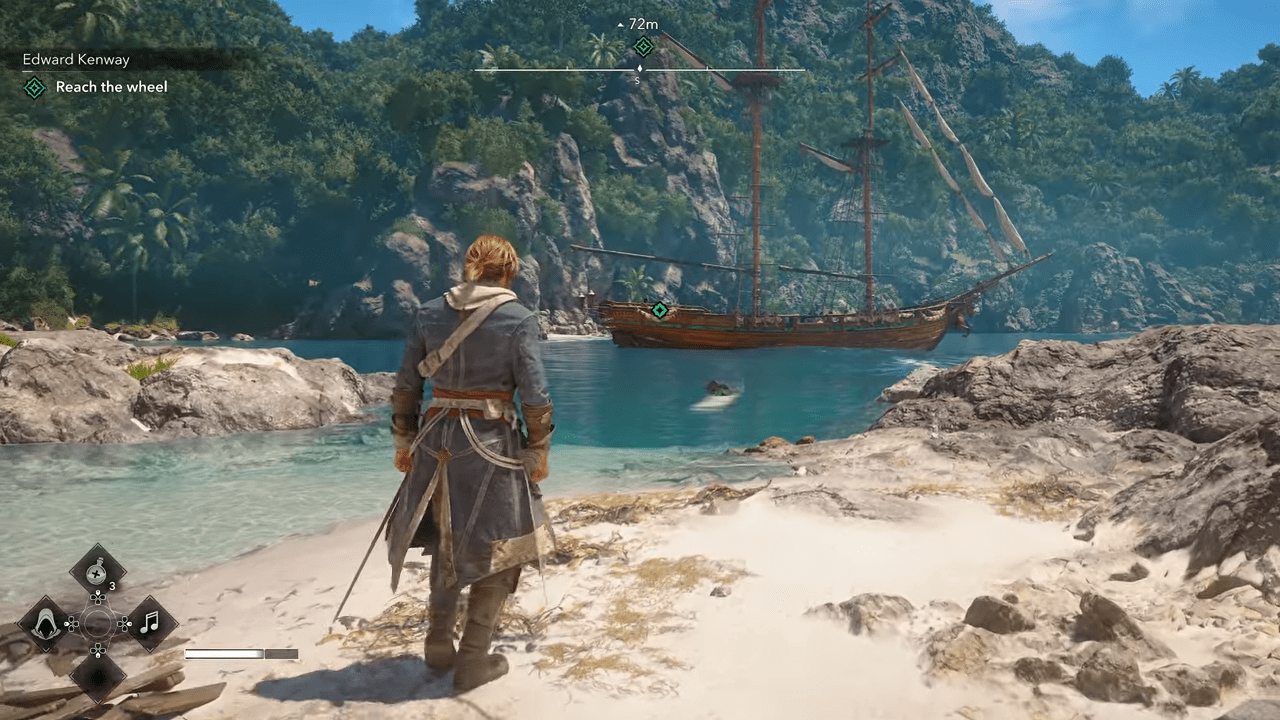
You might notice that your standard interactive gameplay runs flawlessly above the golden standard of sixty frames per second. Yet, the moment the game transitions into a cinematic story sequence, the presentation artificially limits itself to a sluggish thirty frames per second.
Understanding the Root Cause
The developers officially recognized this frustrating flaw. Ubisoft confirmed that cinematic sequences become locked to the lower frame limit when players manually push specific visual parameters to their absolute maximum limits. The specific settings causing this conflict include Ray Tracing, BVH, and Terrain Quality when set to “Ultra High.”
Implementing the Official Workaround
Patience remains required while everyone waits for Ubisoft to distribute a permanent software patch. Until that update arrives, you must utilize the official temporary workaround provided by the development team:
- Navigate to the internal visual configuration menu.
- Revert the Overall Preset setting back to one of the standard default profiles provided by the developers.
- Strictly avoid manually increasing Ray Tracing, BVH, or Terrain Quality to the “Ultra High” tier.
⚙️Quick Fix: Stick strictly to the standard visual presets and avoid the Ultra High tier for Terrain Quality until the developers release a permanent performance patch.
3. Addressing Voice and Animation Synchronization Flaws
A compelling narrative relies heavily on believable character interactions. Technical bugs can easily shatter that illusion.
Identifying the Symptoms
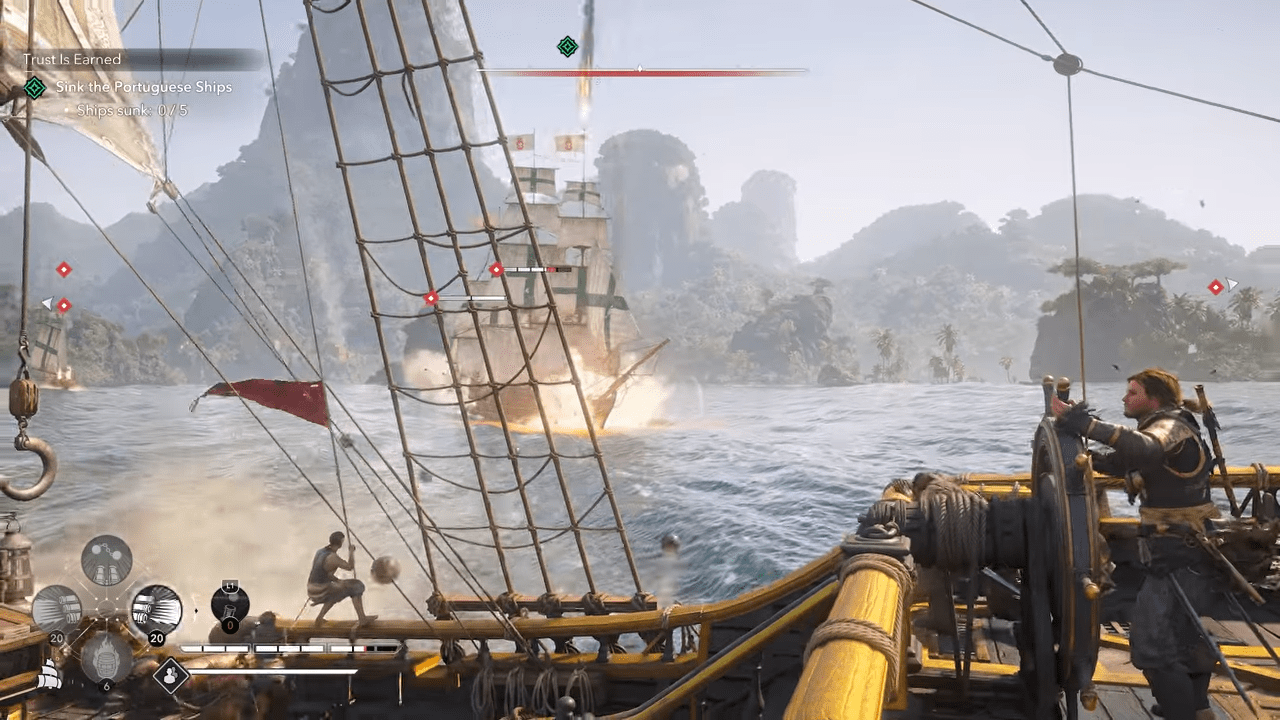
Players actively report that the spoken dialogue fails to perfectly match the physical mouth movements and body animations of the characters on screen. You might hear the voice acting play slightly ahead of the physical action, or it might lag noticeably behind the visual presentation.
Understanding the Root Cause
Ubisoft acknowledges this dubbing synchronization problem. The developers stated that this defect specifically impacts certain localized language editions of the game.
Implementing a Strategy
Currently, the player community has not discovered any reliable local repair for this timing discrepancy. The only practical recommendation involves waiting for Ubisoft to deploy an official update that properly aligns the audio files with the animation triggers.
⚙️Quick Fix: Keep your game client set to automatically download background updates so you receive the official audio synchronization patch the exact moment it launches.
4. Overcoming the Missing Stealth Prompt
A stealth action game requires reliable interactive controls. One specific mission currently suffers from a frustrating mechanical failure.
Identifying the Symptoms
You will encounter this problem during an objective titled “Mark the Kings at the Camp.” Multiple gamers report that they navigate near the very first power keg, but the application completely fails to display the expected Double Assassination action prompt.
Understanding the Root Cause
The development team actively tracks this anomaly. Ubisoft officially lists the missing interface prompt as a documented gameplay defect.
Implementing the Fix
Nobody has uncovered a guaranteed method to prevent this interface failure from happening. If you experience this missing command, you must take the following actions:
- Pause the game and reload a previously saved checkpoint.
- Attempt the infiltration objective from the beginning.
- Submit a formal complaint through the official Ubisoft bug reporting system if the problem continuously blocks your progress.
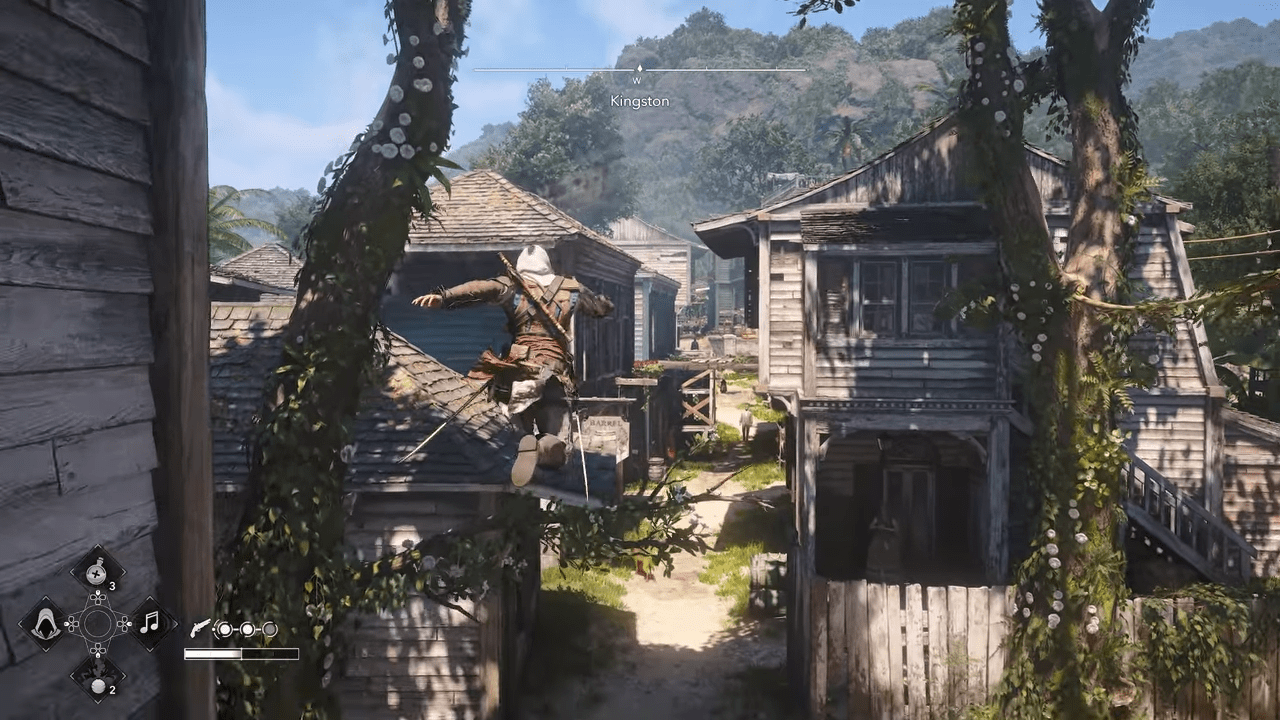
⚙️Quick Fix: Submit a detailed bug report through the official Ubisoft feedback channels if reloading your previous checkpoint continuously fails to restore the required assassination command.
5. Transforming the Experience with ACBlackFlagFix
Dedicated fans often step up to improve software when official updates remain pending. Players frequently notice several presentation limitations within the base game.
Identifying the Symptoms
Beyond the standard technical bugs, you might observe that the game restricts cinematic sequences to lower frame rates. You might also notice that the cloth physics appear strangely limited or rigid. Furthermore, individuals utilizing ultrawide monitors experience distracting black bars (pillarboxing) on certain aspect ratios.
Applying the Ultimate Community Fix
Talented programmers created a highly popular community modification named ACBlackFlagFix. This powerful tool injects a massive collection of quality-of-life upgrades into the engine. Installing this modification provides the following incredible benefits:
- It entirely removes the artificial cinematic frame limit.
- It repairs the cloth physics to operate at a smooth sixty frames per second during story sequences.
- It introduces an extended slider to manipulate your field of view.
- It uncaps the visual fluidity of the interactive map and the pause menus.
- It offers an optional toggle to perfectly center the camera behind the character.
- It completely eradicates the ugly 32:9 pillarboxing from cinematic scenes.
- It provides a convenient function to automatically skip the startup logos.
A Critical Warning Regarding the Modification
You must exercise caution when utilizing the centered camera feature included within the modification. This specific option actively introduces severe tracking problems during specific naval combat scenarios. If you experience chaotic camera movements while ramming enemy vessels or firing your cannons, you must immediately access the modification settings and disable the centered camera option.
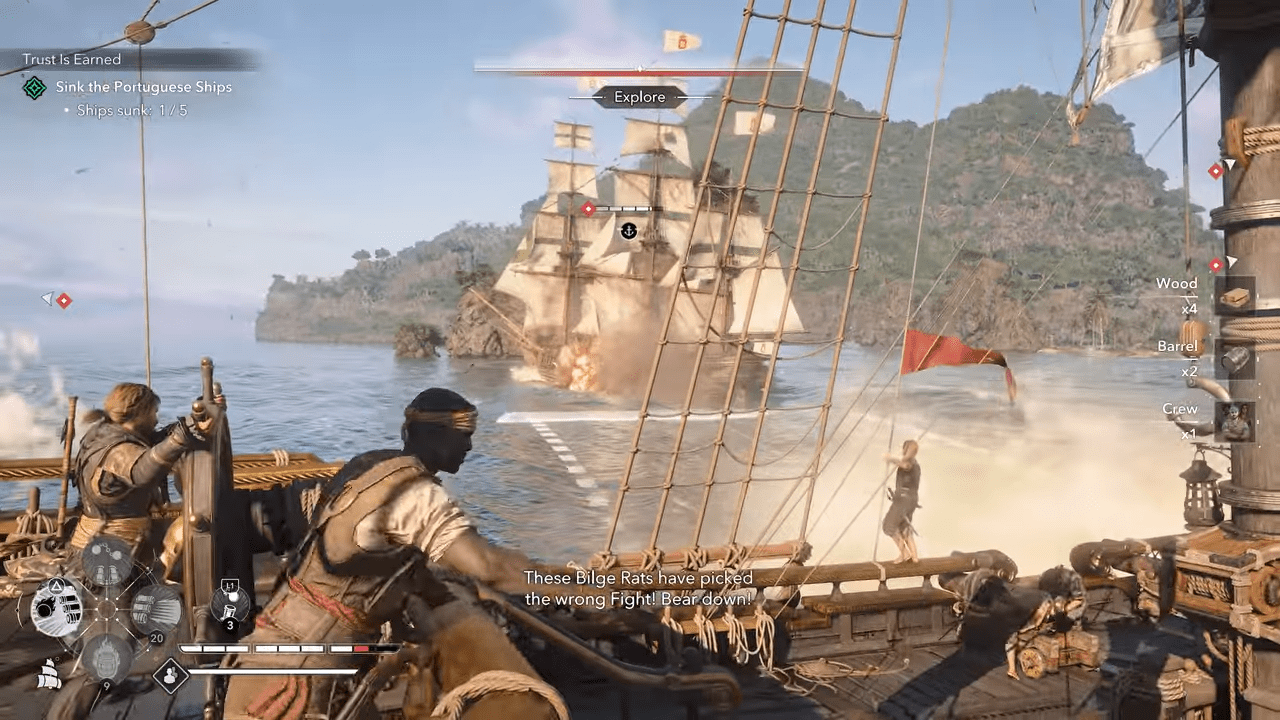
⚙️Quick Fix: Immediately disable the centered camera option within the modification menu if your perspective becomes chaotic or unmanageable during intense naval combat.
6. Expanding Your Horizon with Custom Camera Options
A restrictive perspective can severely hinder your enjoyment of an open-world environment.
Identifying the Symptoms
Many gamers feel that the default camera distance sits much too close to the protagonist. Players consistently express a strong desire for a significantly wider field of view. The standard options menu simply feels too limited for modern computer enthusiasts.
Implementing the Fix
This restrictive perspective does not qualify as a literal game-breaking defect. It represents a presentation limitation. You can effortlessly resolve this complaint by installing the previously mentioned ACBlackFlagFix mod. This tool seamlessly adds an extended field of view slider alongside numerous supplementary camera controls. It serves as the perfect quality-of-life upgrade for anyone who demands absolute control over their visual perspective.
⚙️Quick Fix: Utilize the extended field of view slider included within the community mod to grant yourself absolute control over your surrounding spatial awareness.
7. Neutralizing the Strong Artistic Color Tint
Visual aesthetics always spark intense debates among dedicated fans. The remastered visuals feature a highly controversial design choice.
Identifying the Symptoms
You will instantly notice that the environmental colors appear significantly warmer than you might anticipate. The entire digital world features a highly prominent yellow tint across the screen.
Is This Actually a Glitch?
No. You are not experiencing a graphical error. The developers deliberately implemented this specific color grading as a visual style choice. However, a massive portion of the audience actively dislikes this aggressively warm filter when they compare it directly against the original release.
Implementing the Fix
Players who strongly prefer a cooler, more realistic, and neutral image can download and install a specific community file called the ACBlackFlag Natural Colors ReShade preset. This incredible custom tool actively reduces the overwhelming yellow tint and beautifully adjusts the overarching color balance of the digital world.
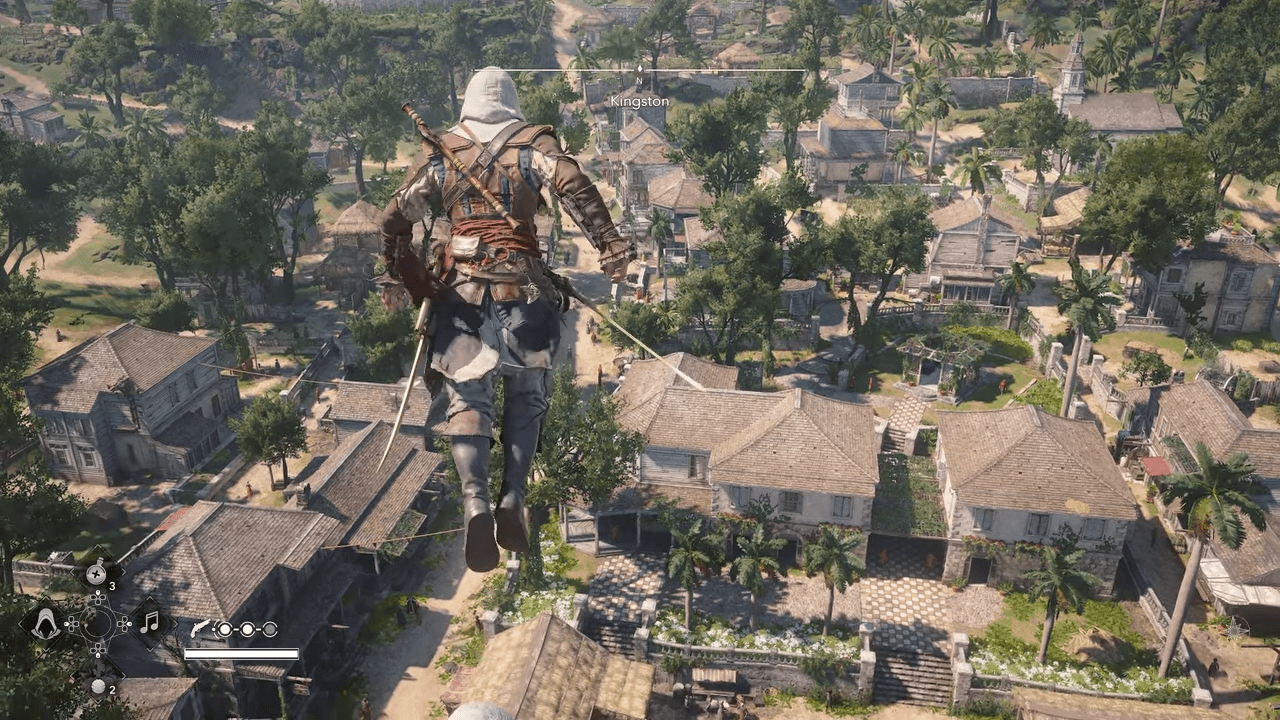
⚙️Quick Fix: Download the Natural Colors ReShade preset to instantly strip away the heavy warm filter and restore a clean, realistic color balance to the Caribbean environment.
8. Conquering Desktop Crashes and Launch Failures
Nothing causes more frustration than a program that simply refuses to run.
Identifying the Symptoms
You might click the play button only to watch the game close immediately. In other instances, the application utterly fails to even reach the primary title menu before collapsing back to your desktop.
Understanding the Root Causes
Gamers consistently report that these catastrophic failures generally relate to incredibly common computer environment problems. The most frequent culprits include severely outdated hardware drivers, heavily corrupted installation files, and aggressive software conflicts happening in the background.
Executing the Troubleshooting Steps
Ubisoft has not published one singular universal cure for every unique desktop crash. You must systematically try the following proven methods:
- Validate the Data: Utilize the repair function located inside your digital storefront to automatically locate and replace any missing or damaged files.
- Refresh the Graphics Software: Navigate to the official AMD or NVIDIA websites to secure the absolute newest drivers for your video card.
- Eliminate Background Interference: You must temporarily disable the Discord interface overlay, shut down any proprietary video card overlays, and close all external performance monitoring tools.
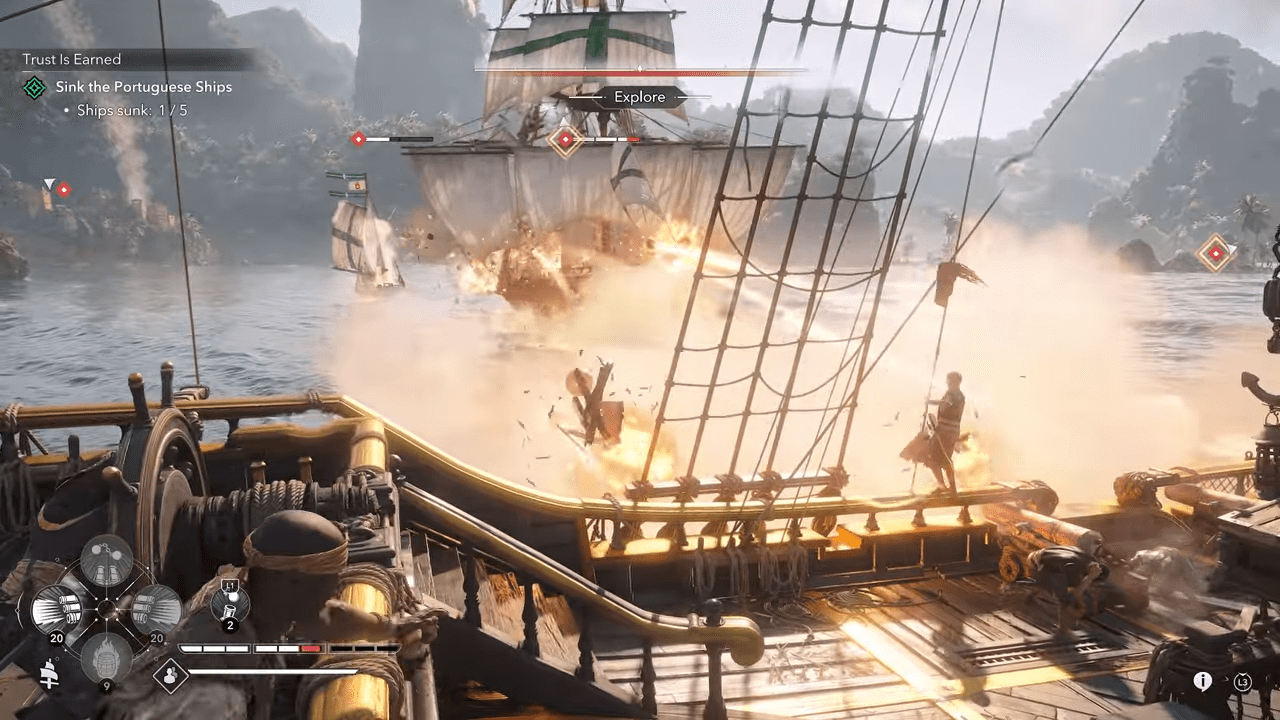
⚙️Quick Fix: Completely disable your Discord overlay and shut down any active performance tracking applications as your very first action against immediate launch crashes.
9. Smoothing Out Performance and Graphical Stutters
Even powerful machines can struggle if the software configuration lacks optimization.
Identifying the Symptoms
You will notice severe frame rate drops during chaotic moments. You might also endure annoying, occasional stutters that interrupt your smooth navigation of the environment.
Understanding the Root Causes
Fluidity problems fluctuate wildly depending on a variety of personal factors. Your specific hardware configuration, your chosen graphical settings, and your current driver versions all play a massive role in overall stability.
Executing the Recommended Fixes
Since these complaints relate to general performance optimization rather than a single confirmed coding error, you should attempt the following strategies:
- Secure the newest driver updates for your video card.
- Manually decrease highly demanding visual features, paying special attention to Ray Tracing.
- Revert all visual options back to the original default presets.
- Terminate any unnecessary applications consuming resources in your computer background.
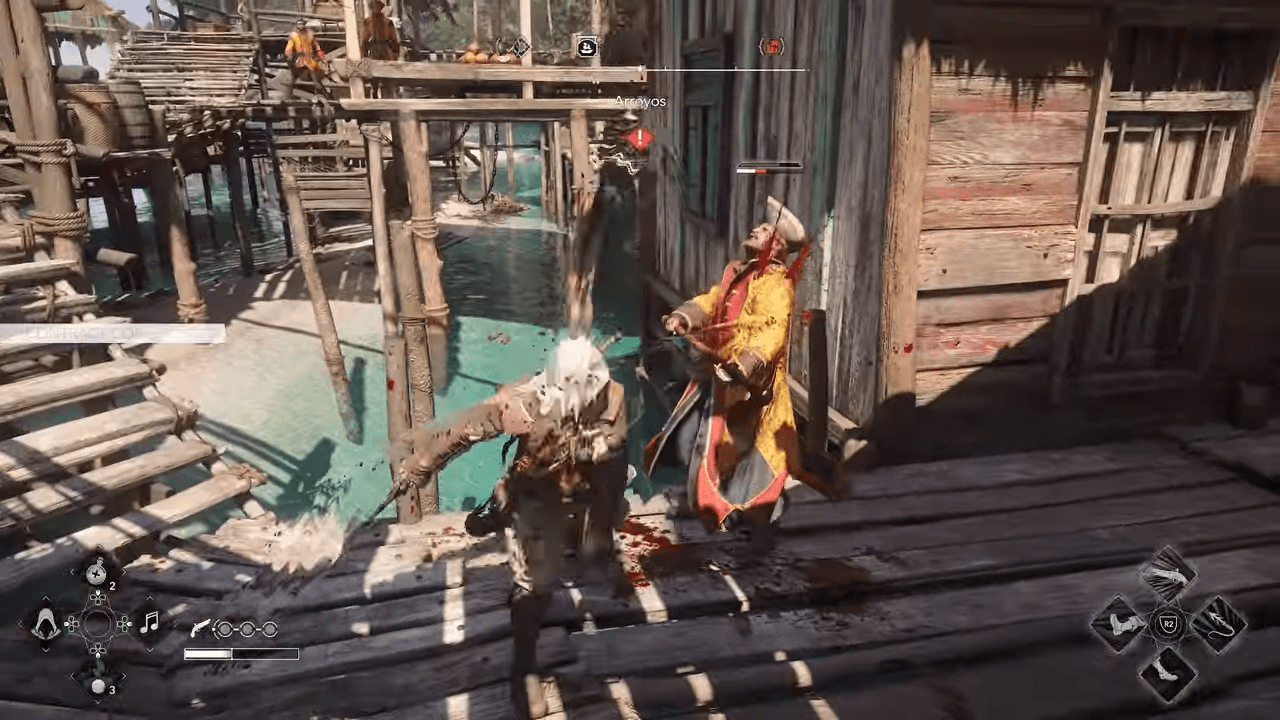
⚙️Quick Fix: Reduce your Ray Tracing settings and close unnecessary background programs to quickly eliminate frustrating graphical stutters during demanding combat sequences.
10. Navigating Authentication and DRM Outages
Digital rights management often creates unforeseen barriers for paying customers.
Identifying the Symptoms
You click the play button, but the game stubbornly refuses to initiate. You then discover that the application denies you access to offline play during periods when the Ubisoft Connect network goes offline.
Understanding the Root Cause
During the initial launch period, a significant number of consumers found themselves completely unable to access the application. The Ubisoft Connect authentication services experienced massive technical problems. This specific incident generated intense community criticism because purchasers logically expected the offline functionality to work perfectly after they completed the initial online activation process.
Implementing the Fix
Players could not repair this barrier locally. The massive failure existed entirely on the server side of the operation. The only viable solution involved patiently waiting for the corporate engineers to recover their online services.
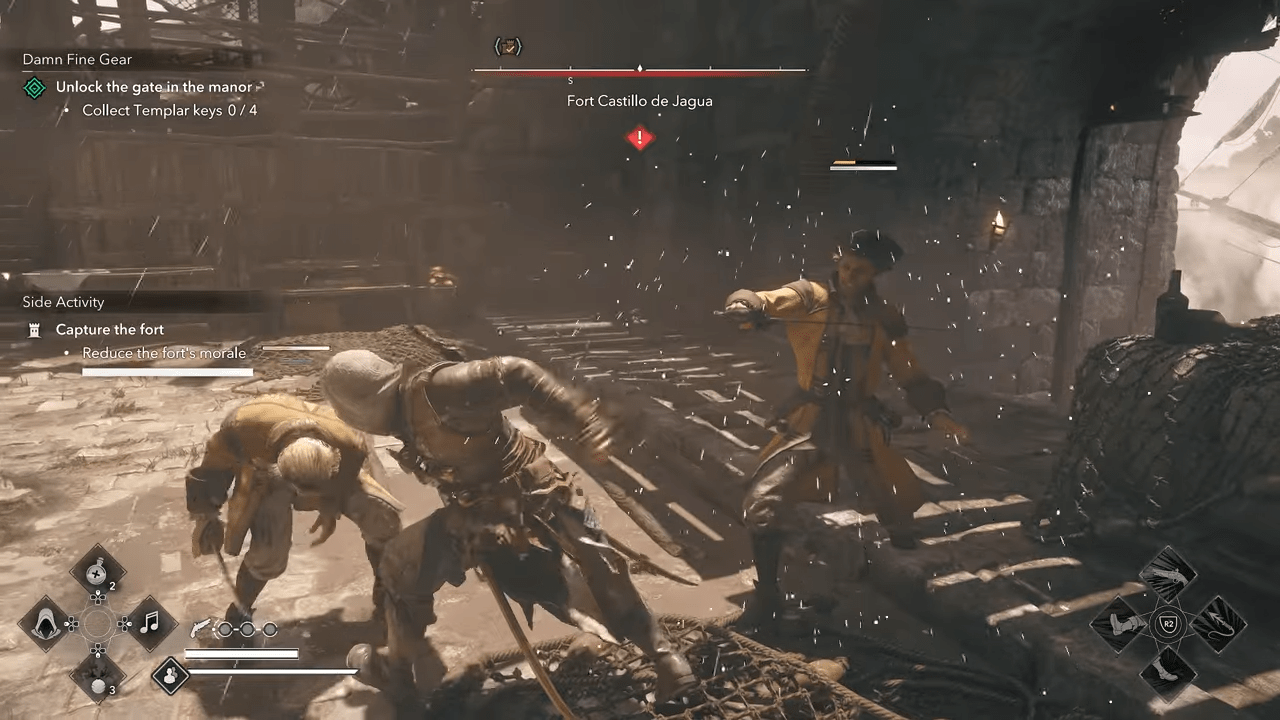
⚙️Quick Fix: Remember that server outages require patience, so simply wait for the corporate engineers to restore the authentication services instead of attempting fruitless local file repairs.
11. Mastering Linux Compatibility and Proton Workarounds
Gaming on alternative operating systems requires a bit of technical elbow grease. A significant portion of the audience struggles to initiate the software on Linux environments. Thankfully, the community provides a fantastic guide to help you break through the compatibility barrier.
Executing the Hyper Fix
A clever user named Hyper posted a highly effective solution on the protondb forums. You must access the software properties and type the exact string PROTON_NO_NTSYNC=1 %command% directly into your launch options box. This simple text addition resolves the primary launch barrier for many individuals. Ensure you fully stop the program inside your library before attempting a fresh launch.
Executing the Deep Clean Strategy
The primary complication seems to stem from the Ubisoft Connect application randomly failing to start within the compatibility layer. Success relies heavily on clearing out conflicting data. If the launch option alone fails, follow this rigorous step-by-step cleaning routine:
- Completely quit the Steam application.
- Open your command terminal and forcefully terminate all remaining related background processes. You must run the exact commands:
pkill -9 -f -i ubisoft; pkill -9 -f upc; pkill -f wineserver - Erase the conflicting cache directories. You must delete the specific shader folder located at
~/.local/share/Steam/steamapps/shadercache/3751950and the compatdata folder located at~/.local/share/Steam/steamapps/compatdata/3751950. - Attempt to launch the software again.
This deep cleaning strategy is not completely foolproof, and success occasionally feels random. If it fails, simply stop the process in your library, repeat the terminal commands and cache deletions, or reboot your entire computer.
Selecting the Right Proton Version
Many successful players utilize the absolute latest GE-proton software version, which you can easily install utilizing the ProtonUp-Qt application. Interestingly, some players report successfully launching the application utilizing the default proton version as well. Remember that you must strictly delete your cache folders every single time you switch between different proton versions.
⚙️Quick Fix: So, always remember to completely delete your shader and compatdata cache folders every single time you switch between different Proton software versions to prevent launch conflicts.
12. Bypassing Tedious Startup Logos and Warnings
Sitting through mandatory corporate logos and legal disclaimers every single time you launch the software becomes incredibly tedious. You can permanently skip these introductory videos by manually manipulating the local files.
Erasing the Corporate Logos
- Navigate to your primary installation directory:
...\Steam\steamapps\common\Assassin's Creed Black Flag Resynced\videos - You must locate three specific files:
ANVIL_Logo.webm,HUB_Bootflow_FranchiseIntro.webm, andUbisoftLogo.webm. - You can either delete these files, move them to a backup folder, or rename them.
Erasing the Legal Disclaimers
- Navigate deeper into the directory to find your localized language folder. For English users, this is located at:
...\videos\en(Change the final folder name to match your specific text language setting). - You must locate three more files:
Epilepsy.webm,warning_disclaimer.webm, andWarningSaving.webm. - Delete, move, or rename these files as well.
The Ultimate Renaming Strategy
The smartest method involves adding the text .BAK to the very end of those specific file names. This strategy protects your modifications. If a future developer update runs, or if you ever verify your installation files, the client will automatically download fresh copies of those videos. By utilizing the .BAK extension, you can instantly identify your old modified files and quickly delete the newly downloaded replacements to restore your fast startup times.
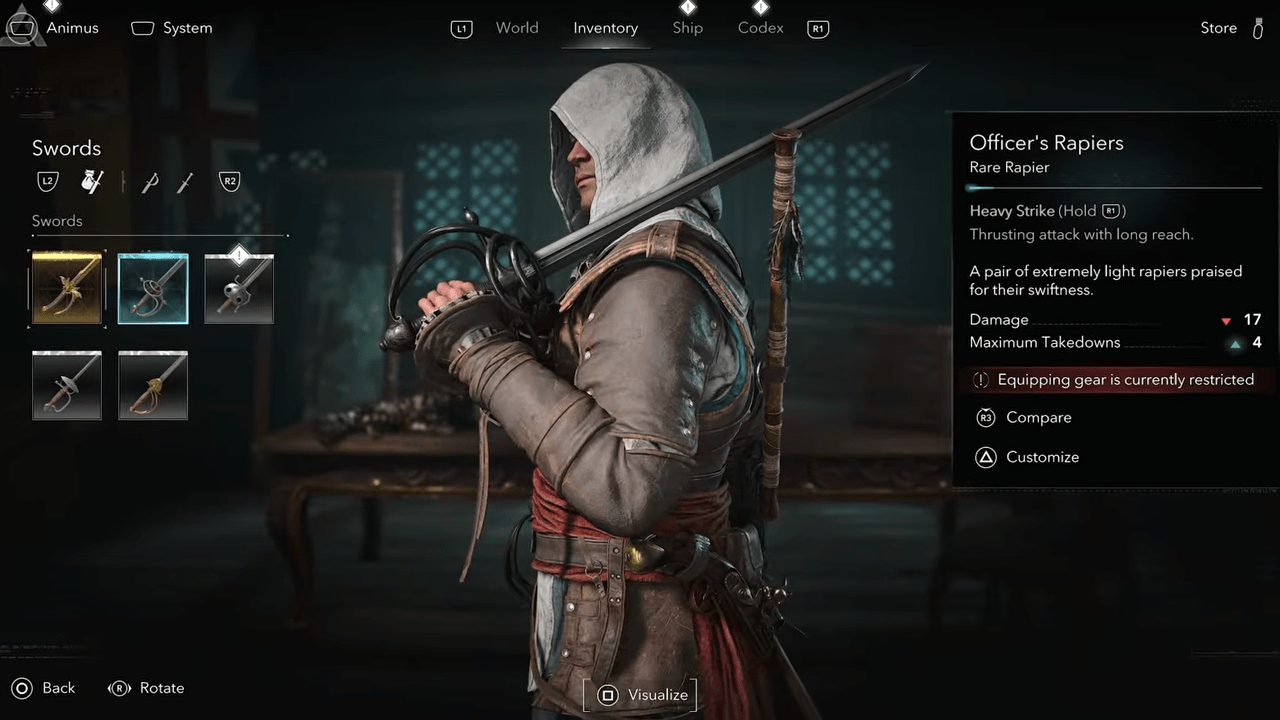
⚙️Quick Fix: Attach the “.BAK” extension to your disabled video files so you can easily spot and remove them again if a future background update accidentally restores the mandatory startup logos.
13. Final Verdict
While Assassin’s Creed Black Flag Resynced stands as a phenomenal remake of a beloved 2013 classic, its launch clearly requires a bit of technical patchwork to achieve true perfection. Our detailed guide equips you with the exact modifications and settings adjustments needed to resolve those frustrating graphical lockups, control anomalies, and startup crashes. Implementing these specific workarounds ensures your software runs smoothly while you explore the new dynamic weather systems and recruit additional officers for the Jackdaw. So, prepare to hoist your colors with absolute confidence, knowing your hardware is fully optimized to handle whatever technical squalls come your way.

Leave a Reply