
Last Updated on 10 August, 2026
Three months ago I almost quit ranked play entirely. Not because I wasn’t good enough, but because I kept losing fights I should’ve won — my shots weren’t registering, my movement felt half a second behind everyone else’s, and the ping counter in the corner of my screen looked more like a phone number than a network stat. I blamed my ISP first. Then my router. Then, embarrassingly, my own mouse. It took way longer than it should have to admit the problem was sitting inside my own PC the whole time.
The Real Culprits Behind Lag
Here’s what I didn’t understand back then: lag rarely has one single cause. It’s usually a pile-up of small inefficiencies that quietly stack until your game can’t keep up. In my case, I had browser tabs eating memory in the background, a cloud backup service syncing mid-match, GPU drivers that hadn’t been touched since who-knows-when, and a home network that treated my game traffic exactly the same as my roommate’s 4K stream.
None of that shows up as an obvious warning sign. You just feel it — inputs that lag a beat behind, frames that stutter right when it matters most, or a ping spike that shows up out of nowhere in the middle of a clutch round. I went down a rabbit hole of forum threads and “top 10 fixes” articles for weeks before I stopped guessing and actually looked for software built specifically to handle this mess.
Where Smart Game Booster Actually Helped
I went in expecting another disappointment, honestly. I’d already burned time on a couple of “optimizer” tools that just moved icons around and called it a day. Smart game Booster wasn’t that. The first thing it did was hand me an actual readout — which processes were hogging my CPU, which services were running for no reason, and where my network settings were working against me instead of for me.
What makes it different from the generic cleanup tools I’d tried before is that it’s built around three specific jobs instead of one vague “speed up my PC” promise:
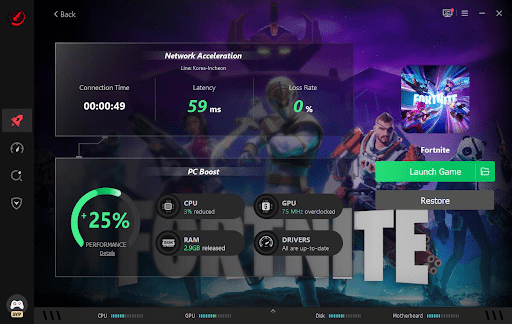
- Network acceleration — this is the part that deals with ping directly. It prioritizes gaming packets over everything else competing for bandwidth on the same connection, and routes traffic through more stable paths to game servers instead of whatever default route your ISP hands you.
- PC Boost — this handles the system side. It frees up RAM, pauses background processes and startup software you don’t need mid-game, and generally clears the runway so your game isn’t sharing resources with a dozen things you forgot were even open
- FPS Boost — this one’s about raw performance once everything else is running clean. It reallocates GPU and CPU priority to whatever game is active, aiming for smoother, more consistent frame delivery rather than just a higher number on the counter.
- GPU Overclocking — this safely boosts your graphics card’s performance beyond factory settings, giving you extra headroom in demanding scenes. It works alongside FPS Boost to keep frame rates stable, with all adjustments handled automatically and safely.
Having these as separate, purpose-built functions rather than one blanket “optimize” button is what made the difference measurable for me. My ping in ranked lobbies dropped from a shaky 110-130ms to a much steadier 30ms range, and it didn’t come at the cost of visual quality or a dozen manual settings changes.
Fixing the Network Side, Not Just the PC Side
A lot of the advice I’d read before only dealt with graphics settings or driver updates, which honestly only solves half the problem. Ping is a networking issue at its core, and that’s the piece most guides skip entirely. The network acceleration piece made the biggest dent for me in a house with three other people constantly online, streaming or downloading while I’m trying to hold a lobby together in a ranked match.
It also picked smoother, more direct routes to game servers instead of whatever default path my ISP handed me. That alone got rid of the random ping spikes that used to show up right as I was pushing a bomb site or lining up a final shot.
How I Set Up Smart Game Booster — It only takes three steps
- Step 1: Download & Install
Head over to Smart Game Booster official website, grab the installer, and run through the setup process. It’s straightforward — just follow the on-screen prompts and you’ll have it installed in no time.
- Step 2: Select Your Game
Once installed, open the software and choose your game from the supported list. Smart Game Booster currently provides network acceleration for 11 popular games, so whether you’re into shooters, battle royales, or MOBAs, chances are your game is covered.
- Step 3: Click to Accelerate Now button
Simply hit the acceleration now button, and with one click,smart game booster will simultaneously apply network acceleration and PC Boost. It frees up system resources, prioritizes your game traffic, and gets you into the action with lower ping and smoother performance — all automatically.
Setup to first optimized match took me under ten minutes, and I never had to manually mess with a driver update or dig through Windows settings myself.
What Changed for My FPS
Ping wasn’t the only headache — frame drops during heavy fights were just as bad, particularly in fast shooters where losing even a few frames can cost you the fight. The FPS Booster feature is what specifically tackled this, working alongside PC Boost to prioritize GPU and CPU power for whatever game was actively running, without forcing me to drop my visual settings to get there.
The gains were most obvious in CPU-heavy titles, where background tasks used to eat into my performance without me even realizing it. Fights that used to turn into a slideshow now hold steady, and frame time consistency — which matters more day-to-day than the raw FPS number — improved noticeably.
Who Is This For?
If you’re not sure whether this is worth setting up, here’s roughly how I’d break it down:
- If your ping spikes during peak hours → Network Booster helps.
- If your FPS drops in crowded fights → FPS Booster helps.
- If you have an older PC or share Wi-Fi with others → this is for you.
Basically, if any part of your setup — your PC, your network, or both — is working against you instead of for you, this covers all three angles instead of making you patch things together yourself.
Would I Recommend It?
Looking back, my biggest mistake was assuming lag was bad luck or a bad ISP plan. Most of it, it turns out, came down to a system that was never optimized for gaming and a network that had no idea my traffic needed priority.
If you’re tired of losing fights to lag, give Smart Game Booster a try — it took me 10 minutes to set up and completely changed how my games feel. You can grab it here.

Leave a Reply