
Last Updated on 23 July, 2025
We all have videos on our phones, and they appear blurry or washed out. This tends to occur more with older devices and when recording in dim environments.
These poor-quality clips are not pleasing when uploaded to social media or used for business. But today, crisp and clear video is demanded, whether posting on the internet, presenting business to a client, or preserving memories.
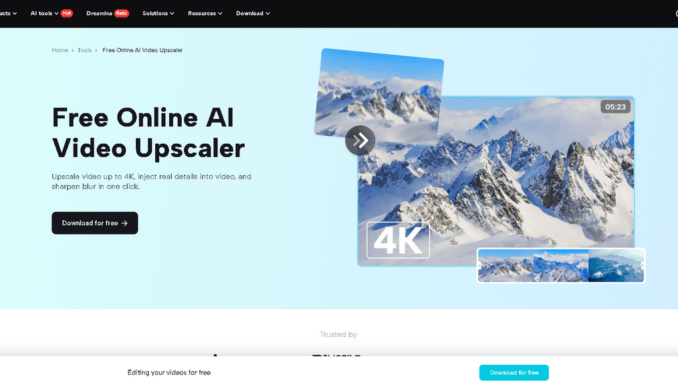
This is where the CapCut desktop video editor takes over. Its AI Video Upscaler makes those low-res clips turn into silky, full HD-quality videos with ease in a few clicks. You don’t need any professional experience.
Let’s find out how AI can upscale your phone video to sharp 1080p quality instantly.
AI Video Upscaler for Improving Phone Footage
Phone video frequently loses definition due to file compression. The clips appear soft or grainy, particularly on large screens. A 1080p resolution is now the default setting for the majority of social networks, work projects, and video albums. It gives your video a sharp and clear look.
CapCut desktop video editor comes with an AI Video Upscaler that revives older or low-quality videos. It enhances the image by correcting edges, enhancing colors, and removing blur. You don’t have to make adjustments, just press a button, and the tool takes care of the rest.
Though most tools on CapCut PC are free, the AI Upscaler might require a paid upgrade. Smart features such as the AI voice generator are also available in this editor, so you can give your video a finishing touch in terms of sound as well as visuals.
Why Use CapCut PC’s AI Upscaler for Phone Footage
-
Restore Quality Without Manual Edits
Phone videos tend to lose resolution to conserve storage space. CapCut desktop video editor uses the AI video enhancer to scan each frame, sharpen edges, and restore lost details. No brightness adjustments or sharpening required, just click to enhance.
-
Enhance Visual Aesthetics for Social Media or Clients
Low-quality clips tend to be overlooked. With the CapCut PC AI video upscaler, your video appears clean and crisp, ready for posting on Instagram, YouTube, or TikTok. It makes your content stand out and appear more professional, perfect for creators or small businesses.
-
Save Time and Learning Curve
Most editing software is difficult to master. But with CapCut PC, upscaling is done in a single click. No timelines or filters to handle. It’s quick and easy for someone who prefers improved videos without the hassle of editing.
-
Compatible with Old or Low-Light Footage
Grainy footage taken on older phones or in low light may look considerably improved with AI upscaling. The feature removes noise, enhances edges, and enhances shadows. You can even include narration with the help of text to speech AI tools, making your content readable as well as understandable.
-
Offer Other AI Features on CapCut PC
In addition to upscaling, CapCut PC also includes tools like the AI voice generator and automatic captions for smoother video creation. These features are used to make full videos easily. Some of the features, such as upscaling to 1080p, require a paid plan, but the output is well worth it.
Steps to Use CapCut PC’s AI Video Upscaler
Step 1: Download CapCut Desktop from Official Website
Go to the official CapCut website and download the CapCut desktop video editor for your PC or laptop. Install the software by following the simple on-screen steps. You’ll need to sign up or log in to start.
Most tools in the editor are free to use. However, features like the AI Video Upscaler may ask for an upgrade or in-app payment.
Step 2: Import Phone Video to Editor
Once you are in the CapCut PC editor, click on “Import” and import your video. The editor supports popular file formats such as MP4 and MOV. Drag your video file to the timeline area to begin the editing process.
Step 3: Use AI Video Upscaler
Click on the “Enhance quality” tab in the top menu or side bar. Locate and select the HD option. Wait for a few seconds while the video gets processed through the built-in AI engine.
Step 4: Export Enhanced Video
Once upscaling is done, click on the “Export” button. Select your output resolution. “1080p” is a standard choice. Choose your preferred resolution, format, and where you want to save the file. Then click “Export” to start the saving process. Now you can publish your high-quality video on any platform or save it for later use.
Conclusion
CapCut desktop video editor allows it to be simple to convert low-quality phone videos to crisp and clean HD content. Its AI Video Upscaler makes it possible for you to do this in a few easy steps. You don’t require editing skills or additional tools.
Some of the AI features, such as the video upscaler, can require a paid plan, but the upgrade is worth it. Choose one of your older clips today. Test out the upscaling feature and see how sharp and detailed your video turns out. Get started now and revitalize your footage.

Leave a Reply