
Last Updated on 21 May, 2026
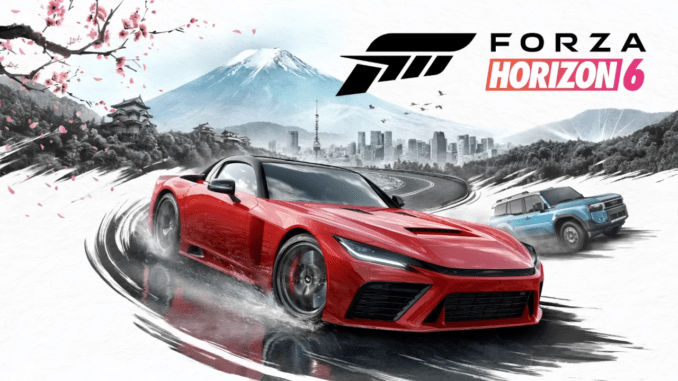
Welcome to our definitive troubleshooting and optimization guide for Forza Horizon 6. The highly anticipated game has finally arrived on our digital storefronts, but it has hit the virtual shelves in a somewhat wrecked state. Many dedicated players find themselves facing the exact same repetitive issues, particularly when it comes to consistent crashing and frustrating performance roadblocks. If you are struggling to keep your vehicle on the road due to technical hurdles, you have definitely come to the right place.
We have compiled a comprehensive list of quick solutions and temporary fixes to combat the common crashes plaguing the game. Please note that the proposed solutions below do not serve as permanent cures from the developers. Instead, we intend for these temporary workarounds to get your game running at all, or at least keep it running for more than a few fleeting minutes. We have organized everything into an easy-to-read format so you can jump straight into the action.
Table of Contents
- Before Getting Into the Game
- The Most Common Stability Fixes
- Unexplainable Linux Issues and Solutions
- Troubleshooting Windows Login Issues and Error E0e9
- Solving the Steam Deck Black Screen
- How to Disable Start-Up Movies
- Guide to Using Japanese Audio with Native Text
- Photo Mode Settings for Realistic Images
- Conclusion
Before Getting Into the Game
Before you start deeply debugging your game or altering system files, you must ensure that your foundational software is in optimal shape. The very first step any player should take is confirming that your graphics drivers are completely up to date. Outdated drivers stand as a leading cause of poor performance and instability.
Once you update your drivers, you must verify your game files. While it might not seem like the most common reason for failure, some people have ended up with corrupted installation files. This digital corruption causes consistent crashes at various predictable points in the game. You can easily fix this by verifying your game installation files via Steam and letting the platform handle the heavy lifting.
To accomplish this verification, follow these exact steps:
- Open your Steam Library application.
- Locate Forza Horizon 6 in your list of installed games and right click on the title.
- Select “Properties” from the resulting dropdown menu.
- Navigate directly to the “Installed Files” section on the sidebar.
- Click the button labeled “Verify integrity of game files.”
Allow Steam the necessary time it needs to completely scan and replace any corrupted data before you attempt to launch the game again.
The Most Common Stability Fixes
After conducting a few targeted experiments, we discovered a glaring issue with how Forza Horizon 6 handles non-console-like environments. Because personal computers have wildly varying hardware, the game frequently struggles to maintain stability when framerates fluctuate unpredictably.
To fix this widespread issue, you must ensure your frames per second are strictly capped. Ideally, you should cap your framerate at exactly 60 FPS while keeping VSync fully enabled. Do not ignore this crucial step. This specific framerate and sync issue plagues both Linux and Windows operating systems. By forcing the game into a stable, console-like framerate environment, you significantly reduce the chances of encountering a random desktop crash.
Furthermore, several users have reported severe issues when using on-screen overlays. Applications such as WeMod, RTSS (RivaTuner Statistics Server), and similar software tools provide overlays that inject themselves into the game rendering pipeline. We strongly advise that you completely disable these overlays before launching the title to ensure maximum stability.
Unexplainable Linux Issues and Solutions
The game works relatively as intended on Windows, but Linux users have had a very poor time running the game on distributions like Arch. As far as we know, this could happen due to a couple of distinct theoretical problems. Here are a few quick things you need to watch out for.
First, your choice of Proton matters immensely. It would seem that standard Proton on its own is simply not ready for Forza Horizon 6. You must exclude standard versions and look toward Experimental or Custom GE versions. If your game crashes, you should immediately try switching your compatibility tool to GE-Proton 10-34. You can easily find this specific GE Proton release over on github.com.
Second, NVIDIA drivers have a notorious reputation in the Linux community, and it truly shows here. There seems to be something fundamentally wrong about the proprietary NVIDIA Linux drivers that simply does not sit right with the game engine.
Third, the display server protocol plays a massive role. While we were not able to confirm this with absolute certainty, there are reports of X11 users having a significantly higher chance of successfully running the game compared to those utilizing Wayland.
If you are looking for a reliable solution to get the game running, the Forza Feedback thread provided a highly recommended workaround. You should use the following launch options in Steam:
VKD3D_CONFIG=descriptor_heap,enable_experimental_features PROTON_VKD3D_HEAP=1 %command%
Please keep the following notices in mind when using these launch options:
- You should note this exact string has only been successfully tested on NVIDIA graphics hardware.
- Some users have reported experiencing minor visual stuttering while playing with these commands.
Troubleshooting Windows Login Issues and Error E0e9
Some users have reported experiencing incredibly weird issues trying to log in on Windows. In some cases, the game entirely refuses to work in the account department. While we have not experienced the issue ourselves, the community has narrowed down the root cause to missing or outdated system dependencies.
You must ensure specific packages are installed and completely up to date on your Windows system. A system restart may be completely necessary after installing these packages in order for the game to recognize them correctly.
The essential dependencies you need include:
- Xbox App: You need the Recommended version, which is exactly 2605.1001.13.0. You can get it directly from the Microsoft Store apps portal.
- Gaming Services: You need a Minimum version of 36.113.2002.0. You can also find this via the Microsoft Store apps portal.
Follow this straightforward process to verify these dependencies are installed and to check if the version is correct:
- Open your Windows Settings menu.
- Navigate to the “Apps” section.
- Search for either “Xbox” or “Gaming Services” in your installed list.
- Select the corresponding tile if it is present.
- Click on “Advanced options.”
- Look closely at the “Version” field located under the “Specifications” header.
If you encounter the specific error code E0e9, the recommended solution is to launch the game as an administrator on top of the dependency solutions proposed above.
Solving the Steam Deck Black Screen
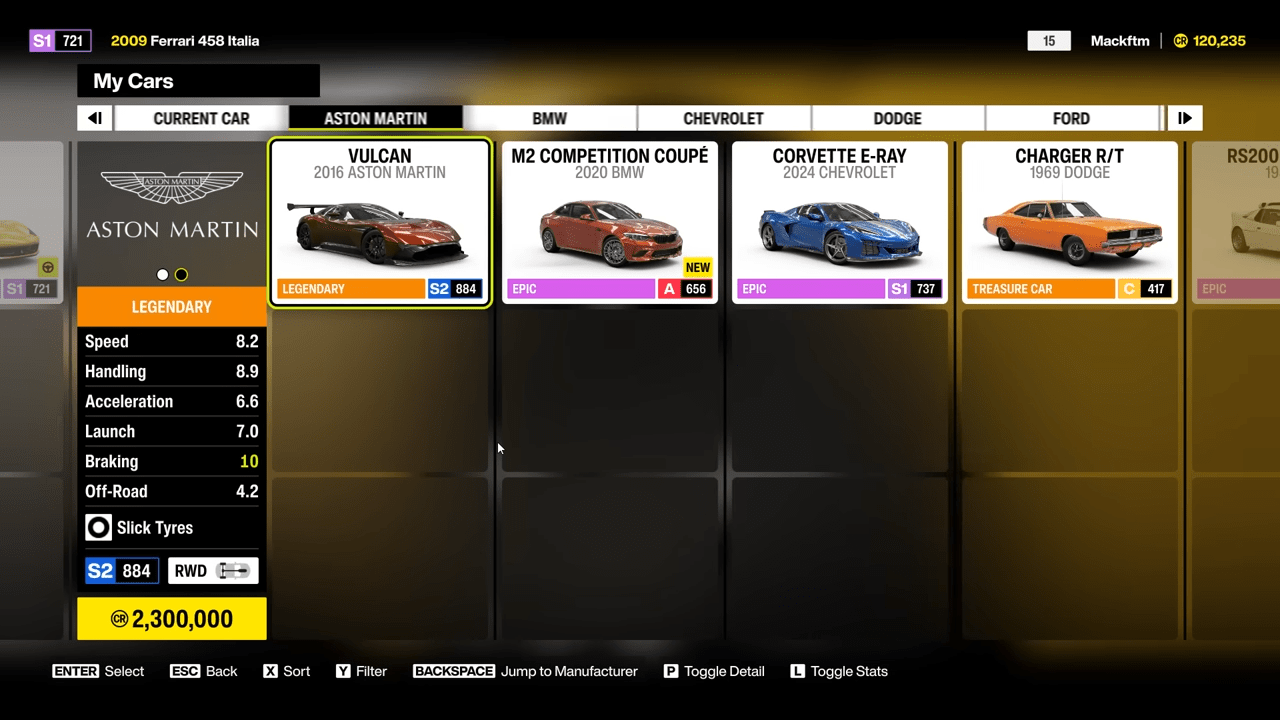
Steam Deck users face distinct issues when it comes to how the game displays visuals, specifically encountering a dreaded black screen upon booting the title.
We suggest using an external physical keyboard so that you can utilize specific keyboard shortcuts. By pressing Alt + Enter or Win + Enter, you force the operating system to adjust how the game renders, allowing it to properly draw visuals on the Steam Deck screen.
You can easily achieve this by connecting a standard keyboard via a USB-C docking station. Any other method that allows you to use a physical keyboard with your Steam Deck will also work perfectly fine to execute this command.
Finally, to ensure you do not have to go through this entire frustrating process every single time you start the game, you need to configure the in-game settings. Make sure you set the game resolution to exactly match your Steam Deck screen resolution, which is traditionally 720p. You must also verify that the game is set to run in fullscreen mode.
How to Disable Start-Up Movies
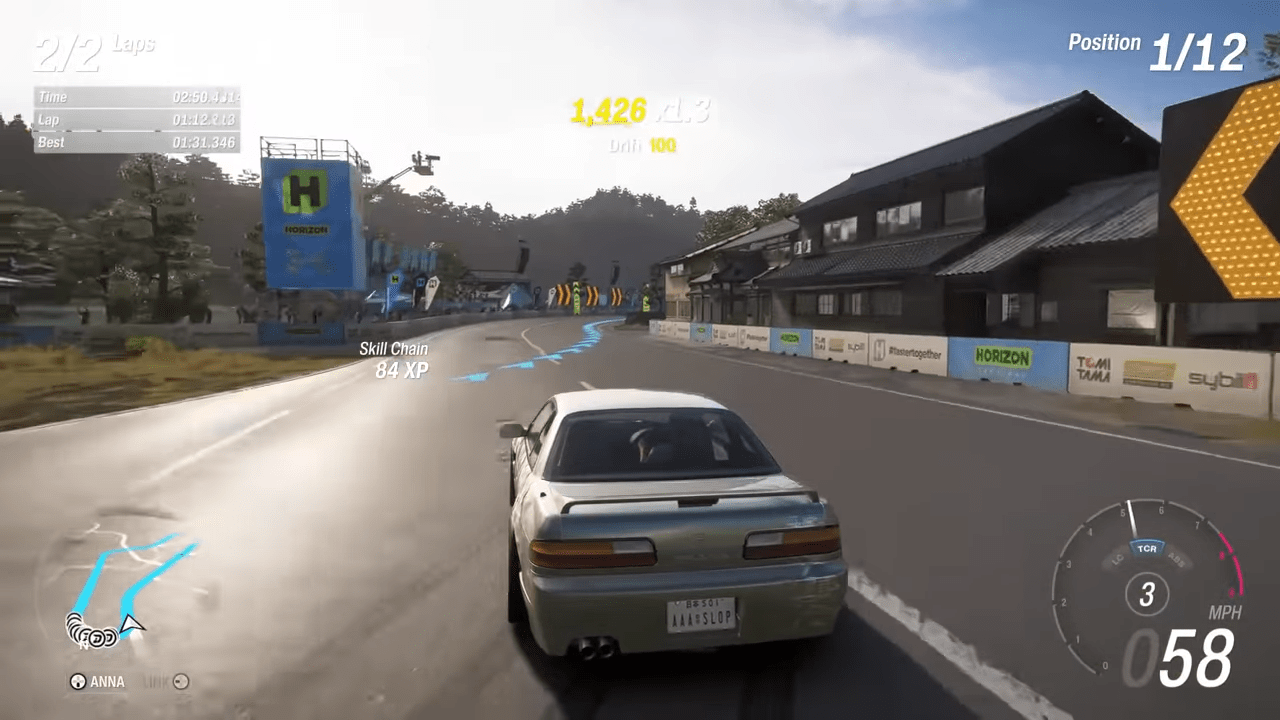
The loud introduction sequences can be incredibly abrasive. By following a few quick steps, you can entirely remove the intro movie from both Playground Games and Turn 10.
Here is the step-by-step process to achieve a quieter launch:
- Right Click Forza Horizon 6 in your Steam Library list.
- Go directly to the “Installed Files” tab in the properties menu.
- Click the “Browse…” button to open your file explorer window.
- Navigate deep into the folders by opening media, then UI, then Videos.
- Locate the specific file named
T10_MS_Combined.bk2. - Rename this file to something else or delete it entirely from your system.
Guide to Using Japanese Audio with Native Text
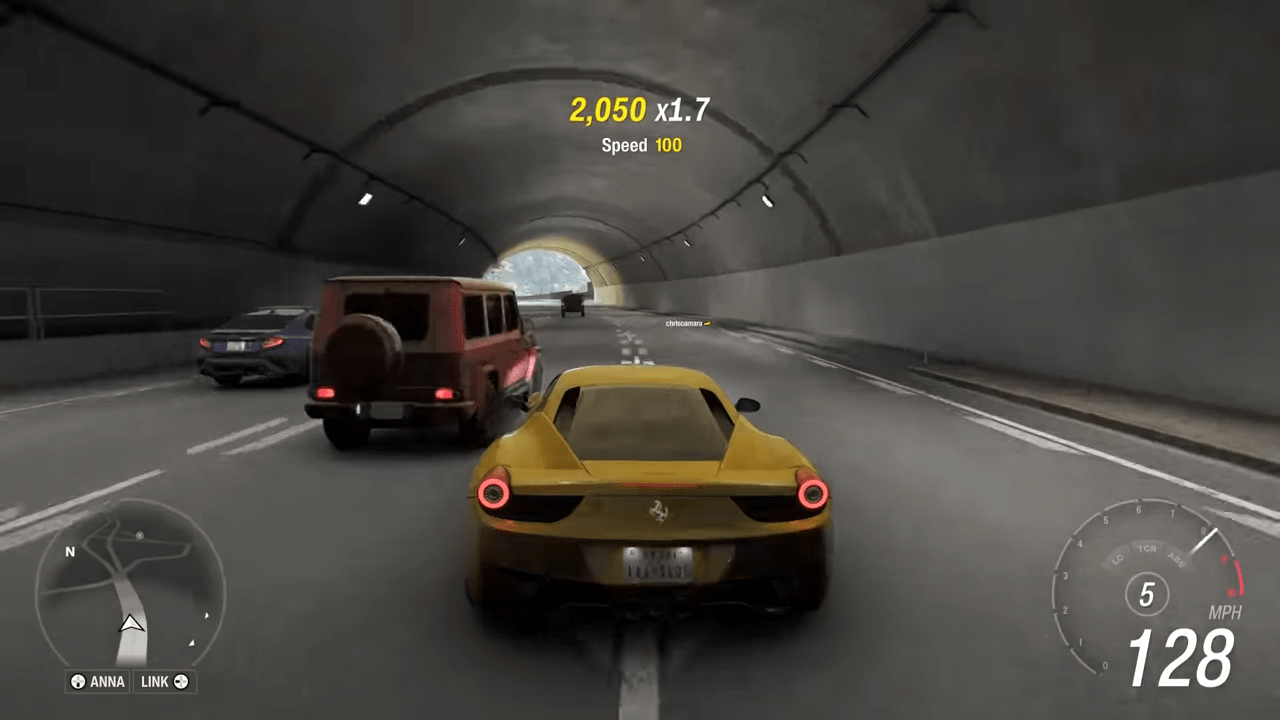
Many players would greatly prefer to play with the spoken audio set to Japanese for maximum immersion while keeping the user interface text in their native language. Unfortunately, the audio language selection in the game firmly links to the global game language setting. It is not naturally possible to select a different language for audio and text in the menus. Here is a quick, detailed guide on how to force the game to remain in your native language while broadcasting the audio in Japanese.
Quick PC Guide
- Launch the game and select Japanese in the options menu (日本語). The game will require a restart. Confirm the prompt when asked.
- Once it has restarted, the game should be entirely in Japanese. You can now close the game completely.
- Next, open your computer file explorer and go to the folder path:
/ForzaHorizon6/media/Stripped/StringTables - Locate the file named
JP.zipand rename it to whatever you like, such asbackup.zip. - Finally, rename your native language file to
JP.zip. In this example, the game will be in English with Japanese audio if you renameEN.ziptoJP.zip.
If you speak German, rename DE.zip to JP.zip. For simplified Chinese, rename CHS.zip to JP.zip. For French, rename FR.zip to JP.zip. For Italian, rename IT.zip to JP.zip. For Polish, rename PL.zip to JP.zip, and for Spanish rename ES.zip to JP.zip.
Steam Deck Guide
The steps are largely the same, but navigating the Linux file system requires a specific approach.
- Launch Forza Horizon 6 in gaming mode and select Japanese as the language (日本語). The game will restart. Once restarted, your interface will be entirely in Japanese.
- Close the game.
- Switch your Steam Deck over to desktop mode.
- You will need to navigate to the following default folder path:
/home/deck/.local/share/Steam/steamapps/common/ForzaHorizon6/media/Stripped/StringTables/ - Rename the
JP.zipfile tobackup.zip. - Rename your desired native language file, such as
EN.zip, toJP.zip. - You can now safely switch the Steam Deck back to gaming mode and launch the game.
Fixing Language Issues After an Update
When Forza Horizon 6 inevitably receives patches and updates, it is entirely possible that your game will develop an issue with the language settings. It is incredibly common for game clients to verify and reinstall missing files during standard updates. Because you previously renamed your native language file to JP.zip, the game detects that your original native file is mysteriously missing. It will subsequently download and reinstall that file directly into the folder, causing a major language conflict.
You will likely see in your folder that your native language zip file has reappeared, even though you had previously renamed it in the last step.
To fix this update issue, follow these exact steps:
- Go back to the
ForzaHorizon6/media/Stripped/StringTables/folder. - Delete the old
backup.zipfile. - Locate the freshly downloaded
JP.zipfile and rename it tobackup.zip. - Rename your newly downloaded native language file back to
JP.zip.
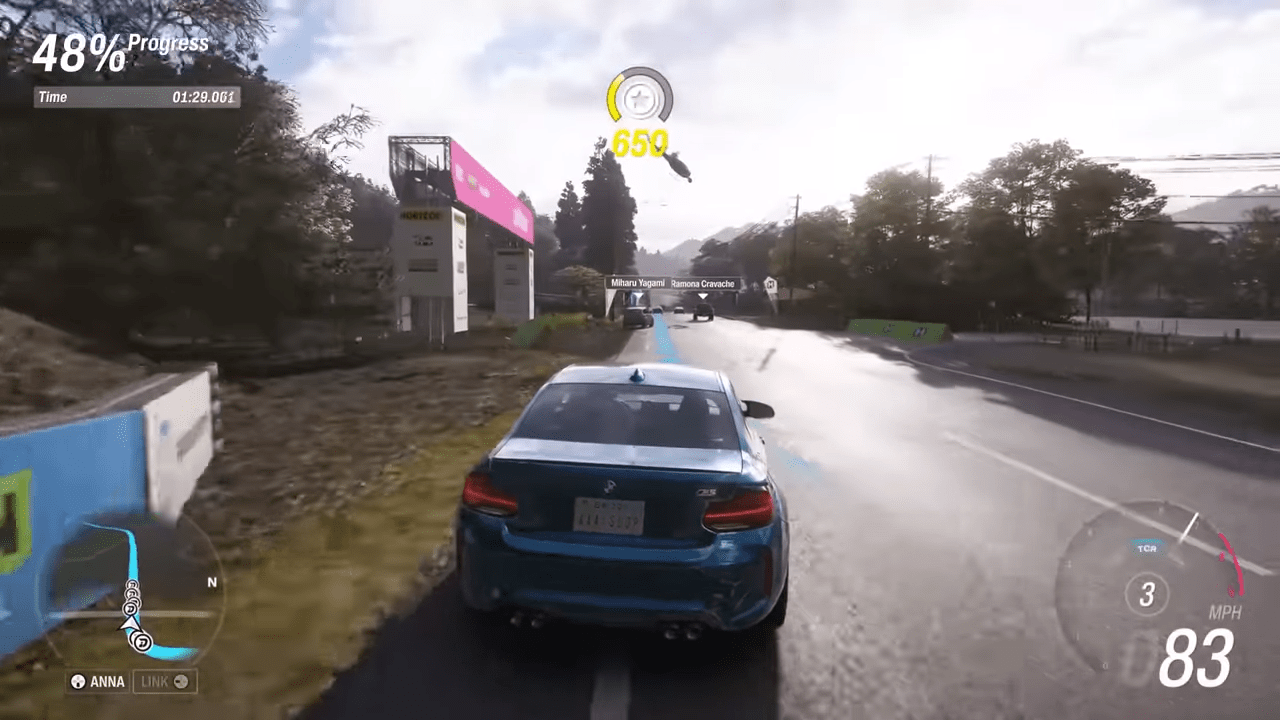
Photo Mode Settings for Realistic Images
This final section of the guide focuses heavily on creating much more realistic and natural looking screenshots using the robust in game photo mode tools. Rather than relying on heavily saturated or overly bright preset filters, these specific settings aim for a cleaner and substantially more cinematic look that better resembles actual real world automotive photography.
Forza Horizon 6 features significantly more advanced lighting routines compared to previous Horizon titles. Elements like dynamic weather, ray traced reflections, advanced global lighting, and dense city environments can drastically change exactly how a screenshot looks depending on the scene. Because of these complex variables, there is absolutely no universal perfect setup that works flawlessly everywhere. The goal of this guide is not to provide magical one click settings, but rather to establish a very strong baseline that consistently produces realistic looking images in most standard situations.
In general, realistic screenshots tend to look slightly darker rather than overly bright. They usually appear less saturated, contain lower contrast than your typical social media style screenshots, and feel significantly cleaner and more natural overall.
Exposure and Brightness Guidelines
The two most critical settings by far are exposure and brightness. Learning precisely how these two sliders interact with different ambient lighting conditions will make a much bigger difference than endlessly tweaking smaller secondary settings.
As a general rule of thumb, your Exposure should usually sit at or slightly above 50. Conversely, your Brightness should usually stay firmly at or below 50.
There are always notable exceptions to this rule. During extremely dark nighttime scenes or particularly gloomy weather conditions, you may require much higher exposure values hovering around 75. However, pushing your brightness above 50 will very often make the final image appear severely washed out and completely unnatural. If your image looks dull, flat, or lacks visual depth, brightness is usually the very first setting that you should reduce.
A fantastic approach is to adjust your exposure first until the car and the surrounding environment are properly visible to your liking. Once you set your exposure, you can then carefully lower the brightness slider until the image beautifully regains its intended depth and contrast. Keep in mind that black or dark colored cars frequently require slightly higher exposure values than bright colored vehicles.
Recommended Baseline Settings
These are the highly recommended baseline settings I personally use to dial into your camera configuration menu:
- Shutter Speed: 50
- Focus Mode: Tracking
- Focus: 30
- Exposure: Greater than or equal to 50
- Aperture: 20
- Bokeh Shape: Hexagon (This remains a personal preference, but Hexagon or Circle bokeh shapes tend to look the most natural)
- Sampling: Quality
- Contrast: 50
- Color: 55
- Brightness: Less than or equal to 50
- Sepia: 10
- Vignette: 30 (This remains a personal preference)
- Temperature: 50
As a final piece of photographic advice, you should strictly avoid using an excessive amount of depth of field. Applying too much blur aggressively ruins the realistic scale of the image. Furthermore, utilizing lower camera angles usually results in a far more realistic perspective. By following these guidelines, you will achieve spectacular visibility while maintaining brilliant contrast and entirely avoiding a washed out, artificial look.
Conclusion
We will end this guide by going on a brief tangent. Despite writing this extensive document and testing countless solutions, we did not manage to get the game running perfectly flawlessly. It is entirely fair to boldly assume the game pre-released in a notably terrible state. We managed to get the title running after what felt like an entirely unreasonable amount of troubleshooting time, only to still experience a hard crash after a mere half an hour of gameplay. The very best thing the community can do right now is collectively hope these severe stability issues get promptly addressed by the developers in upcoming patch cycles.
As we previously stated, this guide is simply a curated collection of a few verified solutions to the most common launch issues plaguing the game. If this detailed guide helped you get your vehicle out of the garage and onto the streets, please leave a review and share this post with your fellow racers to spread the word! Peace and safe driving.

Leave a Reply