
Last Updated on 27 June, 2025
Looking to spice up your Dinkum adventure with mods? Here’s a complete, updated guide on how to install mods in Dinkum for PC players in 2025, including where to find them, how to install them safely, and fixes if something goes wrong.
Contents
What You Need Before Installing Mods
Before diving in, make sure you’ve got the basics:
-
A legal copy of Dinkum (Steam version recommended)
-
Backup of your save files
-
Found at:
C:\Users\[YourName]\AppData\LocalLow\James Bendon\Dinkum\Saves
-
-
WinRAR or 7-Zip to extract downloaded files
-
(Optional) A mod manager or loader (covered below)
Where to Find Dinkum Mods
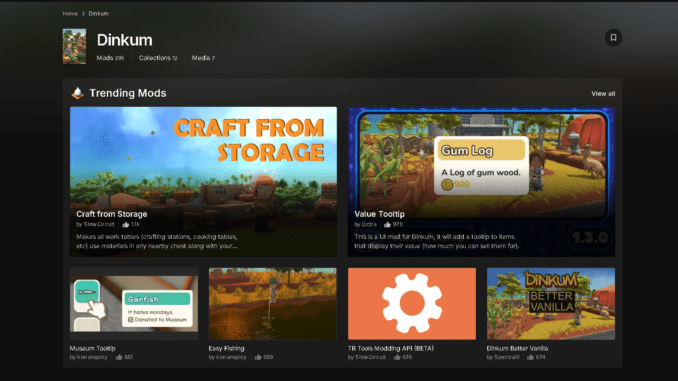
There’s no Steam Workshop (yet), but Dinkum has a growing modding community. Top sources:
| Site | Description |
|---|---|
| NexusMods – Dinkum | Largest mod hub (safe downloads, curated) |
| Dinkum Discord | Community-exclusive mods and help |
| GitHub | For tools, loaders, or advanced tweaks |
Only install and use mods from Nexus that have been updated since November 2023 to ensure compatibility with the Summer Sun update, which broke most mods.
How to Install Dinkum Mods Manually
Step 1: Download the Mod
-
Head to NexusMods or another source and download your mod file
-
Most will be in
.zipor.rarformat
Step 2: Locate Your Dinkum Installation Folder
Typically:
Step 3: Extract and Place Files
-
Open the downloaded mod archive
-
Inside, you’ll usually find a
ModsorPluginsfolder -
Drop the contents into the matching folder inside your Dinkum directory (or follow modder’s instructions)
Step 4: Launch the Game
-
Start Dinkum as normal
-
Some mods may display confirmation or UI changes when loaded correctly
Using a Mod Loader or Manager (Optional)
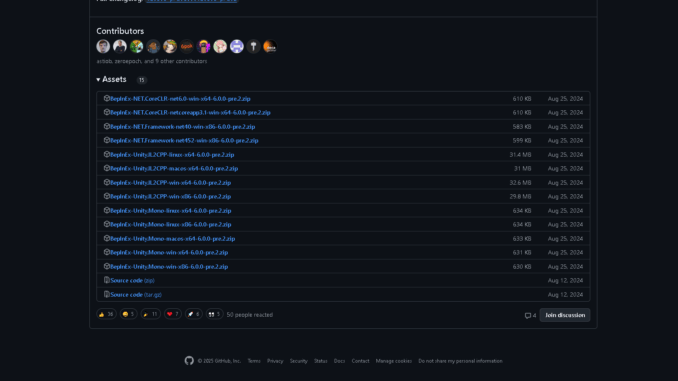
To run most advanced mods in Dinkum, you’ll need to install BepInEx — a popular modding framework for Unity games.
1. Download BepInEx 6.0.0
-
Visit the official release page:
BepInEx v6.0.0-pre.2 on GitHub -
Scroll down to the Assets section and download:
Note: If you’re reading this in the future, a newer version may be available — always use the latest UnityMono x64 build unless a mod specifically requires this version.
2. Install BepInEx
-
Copy all extracted files into your Dinkum game folder, for example:
-
After copying, your Dinkum folder should contain new files like:
-
BepInEx\ -
winhttp.dll -
doorstop_config.ini
-
3. Create the Plugins Folder
-
Inside the new
BepInExfolder, create a subfolder called: -
This is where you’ll place all your
.dllmod files.
How to Install Dinkum Mods (with BepInEx)
Once BepInEx is set up, here’s how to add mods:
-
Go to NexusMods – Dinkum
-
Find a mod you like and click:
-
"Manual"in the top-right corner -
Then
"Download"→"Slow Download"(free option)
-
-
After the
.zipfile downloads, extract it. -
Locate the
.dllfile inside the mod folder. -
Copy the
.dllfile into:
✅ That’s it! Launch the game — the mod should now be active.
Common Issues & Fixes
| Problem | Solution |
|---|---|
| Game crashes on launch | Remove recent mod, check file compatibility |
| Mods not loading | Ensure BepInEx is installed, correct folder |
| Save file corruption | Restore backup from /Saves folder |
| Nothing happens after mod install | Double-check mod version matches your game version |
Bonus Tips
-
Always read the mod description and comments
-
Keep Dinkum updated, but note: some updates can break mods
-
Use only one mod at a time when testing for issues
FAQ about Dinkum
Can you install mods on Dinkum for Xbox or Switch?
No, modding is only supported on PC via Steam.
Is modding Dinkum safe?
Yes, if downloaded from trusted sources like Nexus or GitHub. Always back up saves first.
Will mods disable achievements?
Generally, no — but always check individual mod info.
Video by HelpfulGamer on YouTube
Watch this helpful video guide by Helpful Gamer to find more ways to Download Dinkum Mods.
Modding Dinkum is a great way to refresh your island life with new tools, tweaks, and customization. With this guide, you’re ready to dive into the modding scene safely and easily.
Found this helpful? Don’t forget to bookmark it, and be sure to check out our other game tutorials for more tips and guides!

Leave a Reply